Automated Night-Light with ESP32 & LDR
The Core Concept
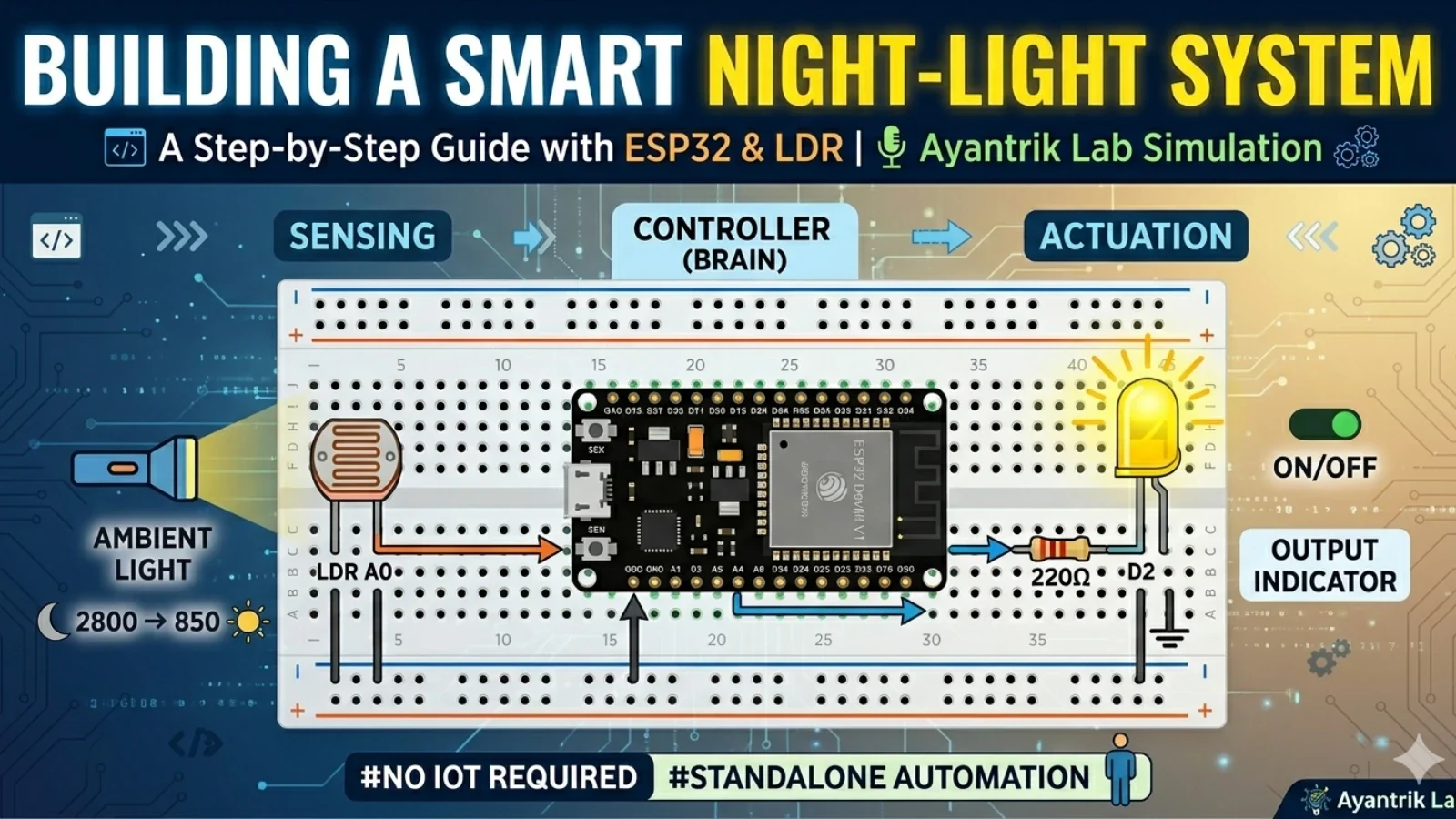
An automated night-light relies on a simple closed-loop sensing cycle:
- Sensing: The LDR (Light Dependent Resistor) measures the surrounding light intensity.
- Processing: The ESP32 Devkit V1 reads the sensor's changing signal and evaluates it against a pre-set threshold.
- Actuation: If the environment is darker than the threshold, the ESP32 activates GPIO2 to light up the LED.
Virtual Components Needed
Open your project workspace inside the Ayantrik Lab simulator, click on the Add Components library, and select the following parts:
- 1x ESP32 Devkit V1
- 1x LED (Any color)
- 1x 220Ω Resistor (To protect your LED)
- 1x LDR (Photoresistor) Module (Ensure it has an A0 analog output pin)
Circuit Connection Guide
Set up your connections carefully on the virtual workspace. Using an LDR module with an analog pin simplifies the circuit drastically compared to building a manual voltage divider from scratch.
| Component | Component Pin | Connection Route | ESP32 Pin Label |
|---|---|---|---|
| LED | Long Leg (Anode / +) | → Through 220Ω Resistor → | D2 (GPIO2) |
| Short Leg (Cathode / -) | → Direct Jumper Wire → | GND | |
| LDR Module | VCC | → Direct Jumper Wire → | 3V3 (3.3V Power) |
| GND | → Direct Jumper Wire → | GND | |
| A0 (Analog Output) | → Direct Jumper Wire → | D34 (GPIO34) |
⚠️ Important Pin Distinction: Make sure you connect to the A0 pin on your sensor module rather than the D0 pin. A0 provides a continuous stream of data tracking varying shades of light, which our code requires to analyze exact room conditions.
The System Code
Open the built-in code editor inside the simulator, delete any default text, and paste this control program:
cpp// --- Hardware Configuration --- const int ldrPin = 34; // Pin D34 handles the analog input from the LDR const int ledPin = 2; // Pin D2 controls our output indicator LED // --- Automation Settings --- // The ESP32 analog pin converts voltages into data values ranging from 0 to 4095. // Lower values = darker environment. Higher values = brighter environment. const int darknessThreshold = 1500; void setup() { // Initialize serial communication for live monitoring Serial.begin(115200); // Set the LED pin as an output controller pinMode(ledPin, OUTPUT); digitalWrite(ledPin, LOW); // Keep light off initially } void loop() { // Read the variable analog data coming from the LDR module int lightLevel = analogRead(ldrPin); // Broadcast the data points to the terminal screen Serial.print("Current Ambient Light Level: "); Serial.println(lightLevel); // Automation Logic: Evaluate light level against our baseline threshold if (lightLevel < darknessThreshold) { digitalWrite(ledPin, HIGH); // Environment is dark -> Activate Night-Light Serial.println(">>> Night-Light Status: [ ON ]"); } else { digitalWrite(ledPin, LOW); // Environment is bright -> Deactivate Night-Light Serial.println(">>> Night-Light Status: [ OFF ]"); } // Take a reading every half second to avoid processing lag delay(500); }
Understanding the Logic
The system functions dynamically using a basic conditional statement inside the execution loop:
-
When it's Bright: The photoresistor experiences low resistance, allowing more voltage to pass through to pin D34. The ESP32 processes this signal as a large number (e.g.,
2800). Because2800is greater than our1500threshold, theelseblock triggers, turning off the LED pin. -
When it's Dark: The photoresistor's resistance spikes up drastically, choking off the voltage flow down to a trickle. Pin D34 detects this drop and registers a small number (e.g.,
850). Since850is less than1500, the main condition is met, throwing the LED pin into a high-voltage state to light up your space.
Testing and Verifying Your System
- Click Run / Start Simulation inside the Ayantrik toolbar.
- Expand the Serial Monitor tab along the lower section of your screen to track the real-time data logs.
- Left-click directly on the LDR component on your digital canvas while the simulation is running. A small environmental slider control will appear above it.
- Drag the slider to adjust ambient conditions. Move it towards the moon icon (representing complete darkness). Watch your terminal output — as soon as the reported numeric light value drops below
1500, your virtual LED will illuminate instantly!