TL;DR: In this project, we build a Simon Says memory game using an Arduino, LEDs, push buttons, buzzer, and LCD in Ayantrik Lab. The system generates a sequence of lights and sounds, and the player must repeat it correctly to progress to higher levels.
The Problem / Why This Matters
Interactive projects like games are one of the best ways to understand:
- Embedded systems
- Input-output handling
- Real-time logic
- Memory-based algorithms
The Simon Says game is a classic example used in electronics to demonstrate:
- Sequential logic
- User interaction
- Pattern recognition
Instead of just blinking LEDs, we now build a **smart system that responds to user input.
This project is available here Try here
What is the Simon Says Game?
Simon Says is a memory-based game.
The system shows a sequence of lights and sounds.
The player must repeat the exact sequence using buttons.
Each level:
- Adds one more step
- Makes the game harder
- Tests memory and reaction speed
Game Rules
- The system flashes a sequence of LEDs (with sound)
- Observe the pattern carefully
- Repeat the sequence using buttons
- If correct → Next level
- If wrong → Game Over
Example
Level 1:
Red
Level 2:
Red → Blue
Level 3:
Red → Blue → Yellow
You must repeat the exact order.
Prerequisites
Components used in this project:
- Arduino Uno
- 4 LEDs (different colors)
- 4 Push Buttons
- Buzzer
- LCD 20x4 (I2C)
All components are available in Ayantrik Lab.
Steps to Create the Project in Ayantrik Lab
1. Open a New Project
Open Ayantrik Lab and create a new project.
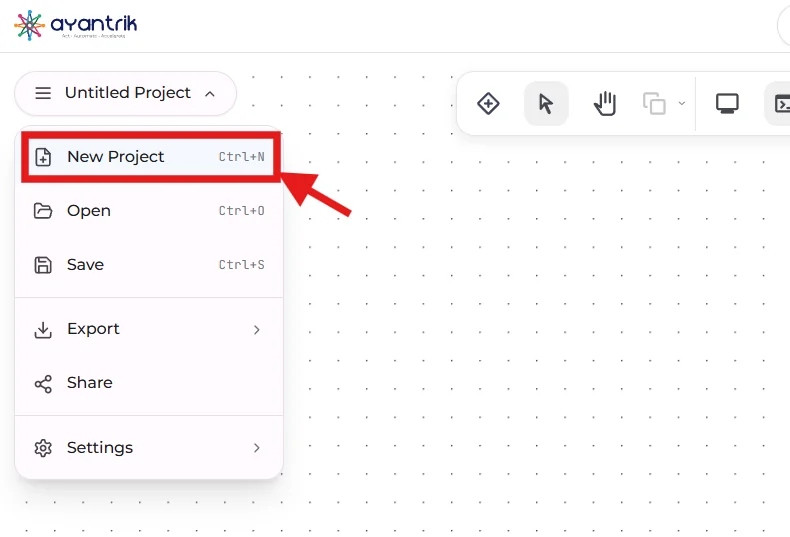 Create New Project
2. Add Components
 Toolbar
Click Add Components from toolbar and add:
- Arduino Uno
- 4 LEDs
- 4 Push Buttons
- Buzzer
- LCD (20x4 I2C)
Arrange them neatly.
3. Make the Circuit Connections
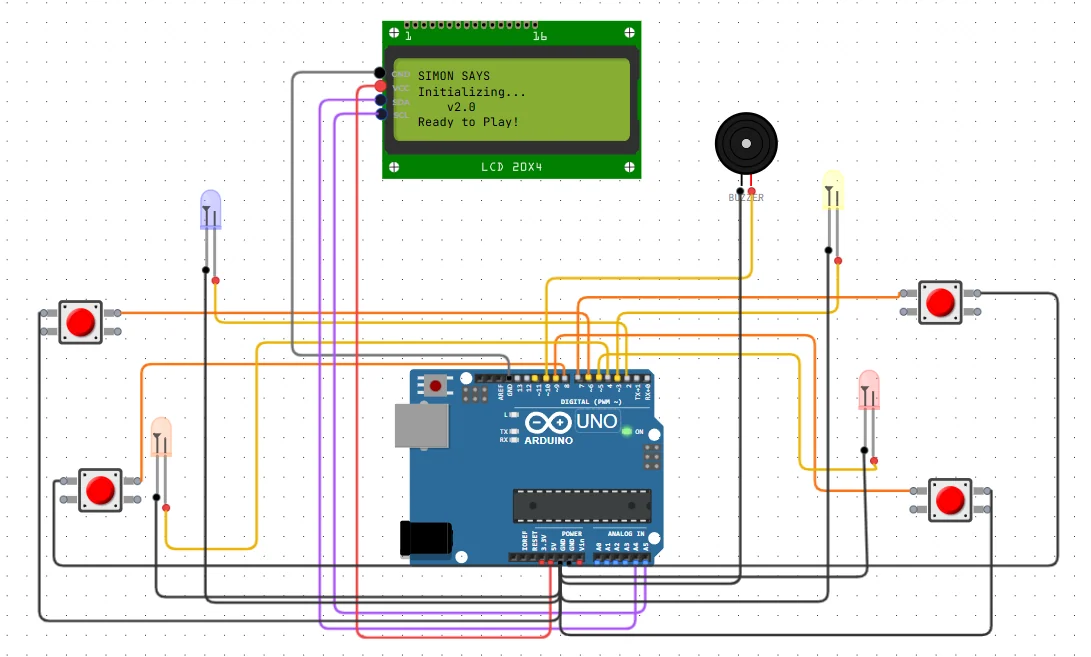 simon says connections
LED Connections
- D2 → LED 1
- D3 → LED 2
- D4 → LED 3
- D5 → LED 4
- All LED cathodes → GND
Push Button Connections
- Button 1 → D6
- Button 2 → D7
- Button 3 → D8
- Button 4 → D9
- Other side → GND
Buzzer
- Positive → D10
- Negative → GND
LCD (I2C)
- VCC → 5V
- GND → GND
- SDA → A4
- SCL → A5
Code
Upload the following code:
cpp#include <Wire.h> #include <LiquidCrystal_I2C.h> // Set the LCD address to 0x27 for a 20 chars and 4 line display LiquidCrystal_I2C lcd(0x27, 20, 4); // Pin Arrays mapped to our wiring const int ledPins[] = {2, 3, 4, 5}; const int buttonPins[] = {6, 7, 8, 9}; const int buzzerPin = 10; // Musical notes for each button/LED const int tones[] = {261, 329, 392, 523}; // C4, E4, G4, C5 const int errorTone = 100; // Game variables const int MAX_LEVEL = 100; int sequence[MAX_LEVEL]; int currentLevel = 0; const int stepDelay = 500; // --- LCD Helper Functions --- void updateLCD(String line1, String line2, String line3 = "", String line4 = "") { lcd.clear(); lcd.setCursor(0, 0); lcd.print(line1); lcd.setCursor(0, 1); lcd.print(line2); lcd.setCursor(0, 2); lcd.print(line3); lcd.setCursor(0, 3); lcd.print(line4); } // --- Helper Functions --- void startupBlink() { updateLCD(" SIMON SAYS ", " Initializing...", " v2.0", " Ready to Play!"); for (int blink = 0; blink < 3; blink++) { for (int i = 0; i < 4; i++) digitalWrite(ledPins[i], HIGH); delay(300); for (int i = 0; i < 4; i++) digitalWrite(ledPins[i], LOW); delay(300); } } void waitForStart() { updateLCD(" WELCOME!", "Press any button", " to start the", " GAME!"); bool started = false; while (!started) { for (int i = 0; i < 4; i++) { if (digitalRead(buttonPins[i]) == LOW) { started = true; delay(300); break; } } } } void playSequence() { updateLCD("WATCH CAREFULLY", "Level: " + String(currentLevel), "Playing sequence..."); for (int i = 0; i < currentLevel; i++) { int currentLED = sequence[i]; digitalWrite(ledPins[currentLED], HIGH); tone(buzzerPin, tones[currentLED]); delay(stepDelay); digitalWrite(ledPins[currentLED], LOW); noTone(buzzerPin); delay(stepDelay / 2); } } bool checkPlayerInput() { updateLCD("YOUR TURN!", "Level: " + String(currentLevel), "Repeat the pattern"); for (int i = 0; i < currentLevel; i++) { int expectedButton = sequence[i]; bool buttonPressed = false; int actualButton = -1; while (!buttonPressed) { for (int b = 0; b < 4; b++) { if (digitalRead(buttonPins[b]) == LOW) { actualButton = b; buttonPressed = true; digitalWrite(ledPins[b], HIGH); tone(buzzerPin, tones[b]); delay(250); digitalWrite(ledPins[b], LOW); noTone(buzzerPin); while(digitalRead(buttonPins[b]) == LOW); delay(50); break; } } } if (actualButton != expectedButton) { return false; } } return true; } void gameOver() { updateLCD(" GAME OVER!", " Score: " + String(currentLevel - 1), " Try harder next", " time!"); tone(buzzerPin, errorTone); for (int i = 0; i < 4; i++) digitalWrite(ledPins[i], HIGH); delay(1500); noTone(buzzerPin); for (int i = 0; i < 4; i++) digitalWrite(ledPins[i], LOW); currentLevel = 0; delay(2000); startupBlink(); waitForStart(); } void setup() { Serial.begin(9600); // LCD Setup lcd.init(); lcd.backlight(); for (int i = 0; i < 4; i++) { pinMode(ledPins[i], OUTPUT); pinMode(buttonPins[i], INPUT_PULLUP); } pinMode(buzzerPin, OUTPUT); randomSeed(analogRead(A0)); startupBlink(); waitForStart(); } void loop() { // Add new step sequence[currentLevel] = random(0, 4); currentLevel++; delay(500); playSequence(); if (!checkPlayerInput()) { gameOver(); } else { updateLCD(" CORRECT!", " Moving on...", " Get ready!"); delay(1000); } }
How the Logic Works
1. Generate Sequence
A random sequence is generated and stored in memory.
Each level adds a new step to the sequence, making the game progressively harder.
2. Play Sequence
The system plays the sequence using:
- LEDs (visual feedback)
- Buzzer (audio feedback)
Each step is shown one by one with a small delay.
3. Check User Input
The player must repeat the sequence using push buttons.
- If the input matches → Level increases
- If the input is wrong → Game Over
Expected Behavior
When you run the simulation:
- LCD shows a welcome message
- LEDs blink in a specific pattern
- Buzzer plays corresponding tones
- You repeat the pattern using buttons
- The sequence increases with each level
Built-in Debugging in Ayantrik Lab
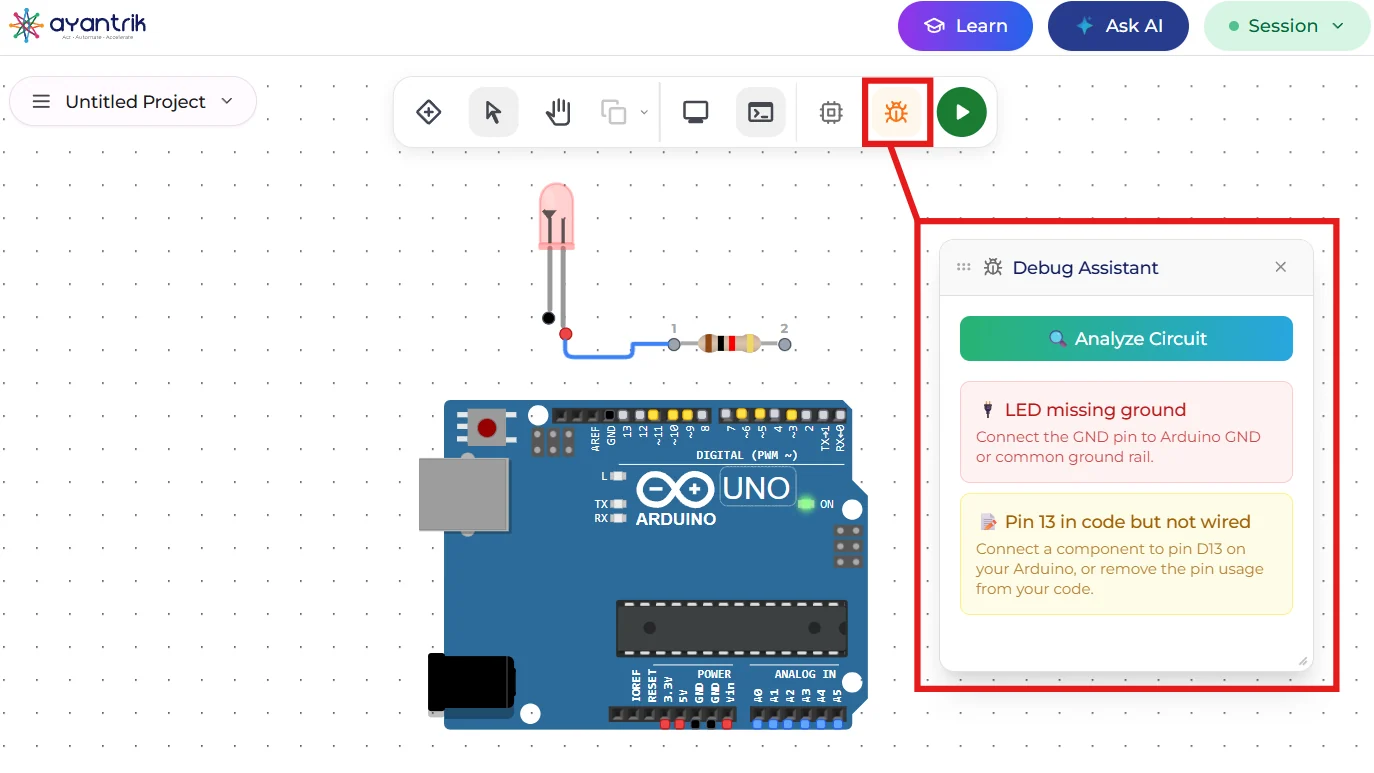 Debugging
Ayantrik Lab provides a built-in debugging feature that helps debug both:
- Circuit connections
- Code logic
The debugger can detect:
- Wrong wiring
- Missing connections
- Incorrect pin mapping
- Code-related issues
This makes it much easier to build complex interactive projects.
Conclusion
In this project, we built a Simon Says memory game using Arduino in Ayantrik Lab.
You learned:
- How to handle multiple inputs and outputs
- How to design interactive logic
- How to build a memory-based system
- How to combine LEDs, buttons, buzzer, and LCD
This project is a great step toward building:
- Smart embedded systems
- Interactive devices
- Game-based electronics
Try Next
You can extend this project by:
- Adding score display on LCD
- Increasing speed with levels
- Adding difficulty modes
- Saving high scores
Now you're not just building circuits, you're creating interactive systems.
Happy learning with Ayantrik Lab!