Line Following Robot in Ayantrik Lab
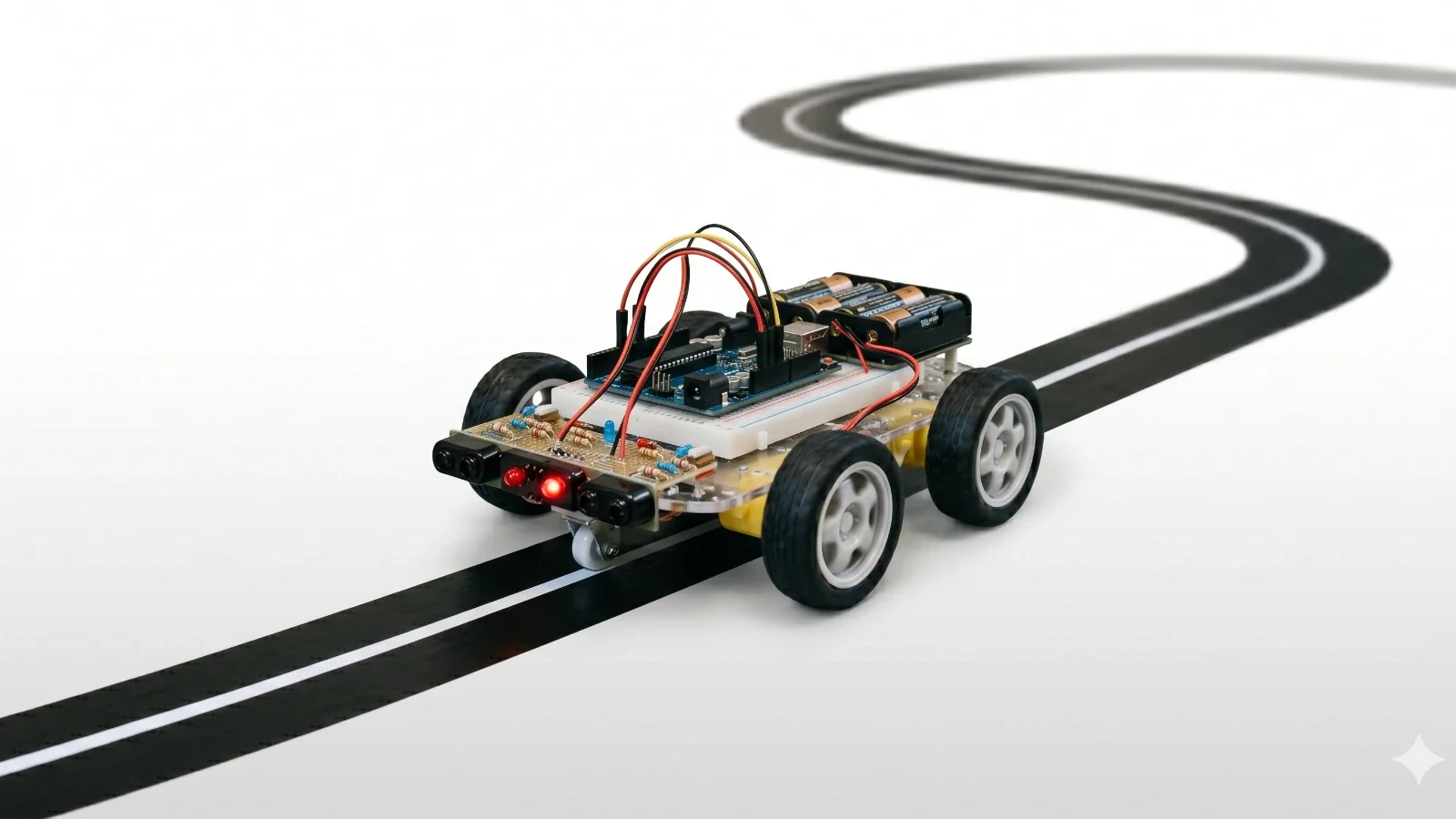
TL;DR: In this project, we build a Line Following Robot using an Arduino, IR sensors, motor driver, and DC motors in Ayantrik Lab. The robot detects a path (line) and automatically follows it by adjusting its movement based on sensor input.
The Problem / Why This Matters
Automation is a key part of modern robotics.
Line following robots are widely used in:
- Industrial automation
- Warehouse management
- Delivery robots
- Autonomous vehicles
- Robotics competitions
Understanding how a robot follows a path helps you learn:
- Sensor-based decision making
- Motor control
- Real-time logic execution
This project demonstrates how simple logic and sensors can create an autonomous system.
Basic Concept
A Line Following Robot uses sensors to detect a line and moves accordingly.
It consists of:
- Sensors → Detect path
- Controller (Arduino) → Makes decisions
- Motor driver → Controls motors
- Motors → Move the robot
How It Works (Simple Idea)
The robot checks:
- Where the line is (left or right)
- Adjusts movement to stay on track
If it goes off track → It corrects itself.
Prerequisites
Components used in this project:
- Arduino Uno
- 2 IR Sensors
- L298N Motor Driver
- 2 DC Motors
All components are available in Ayantrik Lab component library.
Steps to Create the Project in Ayantrik Lab
1. Open a New Project
Open Ayantrik Lab and create a new project.
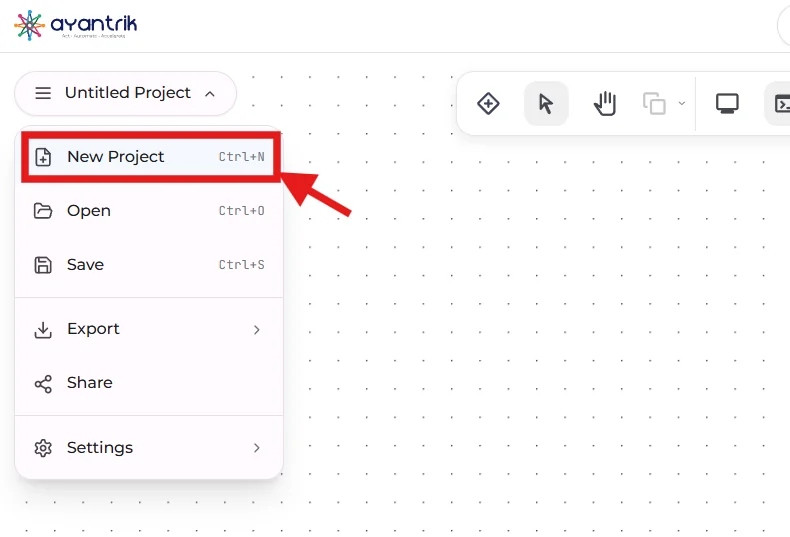 Create new project
2. Add Components
 Toolbar
Click Add Components and add:
- Arduino Uno
- 2 IR Sensors
- L298N Motor Driver
- 2 DC Motors
Arrange them neatly.
3. Make the Circuit Connections
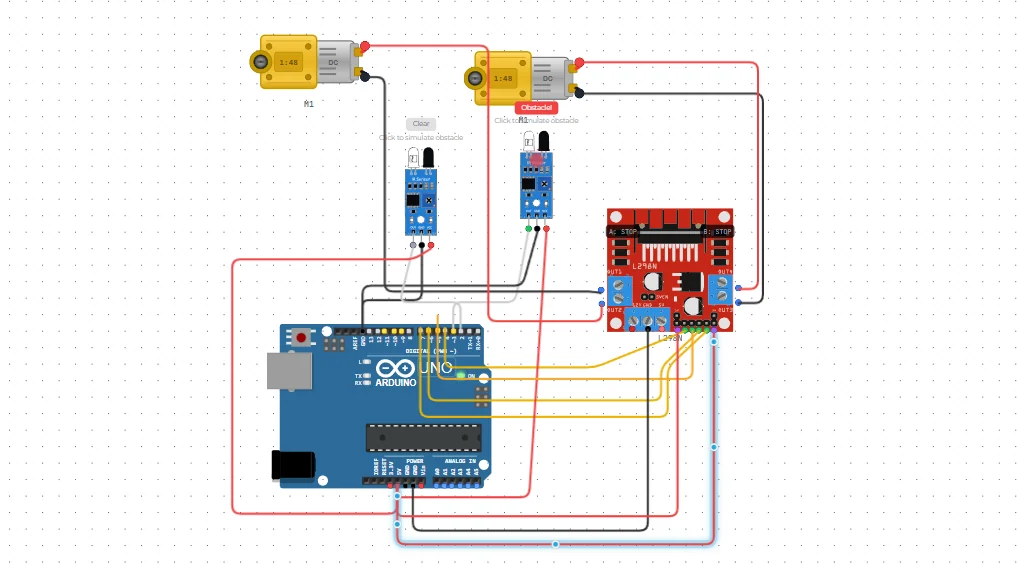 Connection
IR Sensors → Arduino
- Left Sensor → D2
- Right Sensor → D3
- Both sensors → 5V and GND
Arduino → Motor Driver
- D4 → IN1
- D5 → IN2
- D6 → IN3
- D7 → IN4
Motor Driver → Motors
- OUT1 & OUT2 → Left Motor
- OUT3 & OUT4 → Right Motor
Power Connections
- Motor Driver → 5V and GND from Arduino
Code
Upload the following Arduino code:
cpp// --- IR Sensor Pins --- const int leftSensor = 2; const int rightSensor = 3; // --- Motor Driver Pins --- const int in1 = 4; const int in2 = 5; const int in3 = 6; const int in4 = 7; // Movement functions void moveForward() { digitalWrite(in1, HIGH); digitalWrite(in2, LOW); digitalWrite(in3, HIGH); digitalWrite(in4, LOW); } void turnLeft() { digitalWrite(in1, LOW); digitalWrite(in2, LOW); digitalWrite(in3, HIGH); digitalWrite(in4, LOW); } void turnRight() { digitalWrite(in1, HIGH); digitalWrite(in2, LOW); digitalWrite(in3, LOW); digitalWrite(in4, LOW); } void stopMotors() { digitalWrite(in1, LOW); digitalWrite(in2, LOW); digitalWrite(in3, LOW); digitalWrite(in4, LOW); } void setup() { pinMode(leftSensor, INPUT); pinMode(rightSensor, INPUT); pinMode(in1, OUTPUT); pinMode(in2, OUTPUT); pinMode(in3, OUTPUT); pinMode(in4, OUTPUT); } void loop() { int leftVal = digitalRead(leftSensor); int rightVal = digitalRead(rightSensor); if (leftVal == LOW && rightVal == LOW) { moveForward(); } else if (leftVal == HIGH && rightVal == LOW) { turnLeft(); } else if (leftVal == LOW && rightVal == HIGH) { turnRight(); } else { stopMotors(); } }
How the Logic Works
The robot continuously reads data from two IR sensors and decides how to move.
Case 1: Move Forward
- Left Sensor = LOW
- Right Sensor = LOW
Meaning:
- Both sensors detect white surface
Action:
- Both motors move forward
→ Robot moves straight
Case 2: Turn Left
- Left Sensor = HIGH
- Right Sensor = LOW
Meaning:
- Left sensor detects the line
Action:
- Left motor stops
- Right motor moves
→ Robot turns LEFT
Case 3: Turn Right
- Left Sensor = LOW
- Right Sensor = HIGH
Meaning:
- Right sensor detects the line
Action:
- Right motor stops
- Left motor moves
→ Robot turns RIGHT
Case 4: Stop
- Left Sensor = HIGH
- Right Sensor = HIGH
Meaning:
- Both sensors detect the line
Action:
- Both motors stop
→ Robot halts
Expected Behavior
When you run the simulation:
- Robot follows the path automatically
- Adjusts direction in real-time
- Turns left/right when deviating
- Stops when both sensors detect line
Built-in Debugging in Ayantrik Lab
Ayantrik Lab provides a built-in debugging system.
It helps detect:
- Incorrect wiring
- Missing power or ground
- Wrong pin connections
- Code errors
This makes learning robotics easier for beginners.
Conclusion
In this project, we built a Line Following Robot using Arduino in Ayantrik Lab.
You learned:
- Sensor-based decision making
- Motor control using driver module
- Real-time logic execution
- Basics of autonomous robots
This project is a strong foundation for advanced robotics topics like:
- Obstacle avoidance robots
- Path planning systems
- Autonomous navigation
Next Steps
Try extending this project:
- Add obstacle detection using ultrasonic sensor
- Implement speed control (PWM)
- Build maze-solving robot
- Add Bluetooth or WiFi control
Happy learning with Ayantrik Lab!