
TL;DR: In this project we simulate the behavior of an AND logic gate using an Arduino, two slide switches, and an LED in Ayantrik Lab. The switches act as inputs, the AND gate processes the logic, and the LED turns ON only when both inputs are HIGH, demonstrating the fundamental rule of AND logic.
The Problem / Why This Matters
Digital electronics works using logic gates, which are the basic building blocks of all modern electronic systems.
Logic gates are used in:
- Computers
- Microcontrollers
- Embedded systems
- Robotics
- Digital circuits
Before learning advanced electronics, it is important to understand how basic gates work. One of the most important gates is the AND Gate. The AND gate produces an output only when both inputs are ON (HIGH).
In this tutorial, we will simulate the AND gate using Ayantrik Lab, so we can see how digital inputs control the output without building the circuit physically.
Basic Theory of AND Gate
An AND Gate performs logical multiplication
- Two inputs (A and B)
- One output (Y)
The output becomes HIGH only when both inputs are HIGH.
Boolean Expression
Y = A · B
This means output is 1 only when A = 1 AND B = 1.
Truth Table of AND Gate
| Input A | Input B | Output Y |
|---|---|---|
| 0 | 0 | 0 |
| 0 | 1 | 0 |
| 1 | 0 | 0 |
| 1 | 1 | 1 |
Explanation:
- If any input is LOW → Output LOW
- Only when both inputs HIGH → Output HIGH
In this project:
- Slide Switch 1 → Input A
- Slide Switch 2 → Input B
- AND Gate → Logic processor
- LED → Output indicator
Prerequisites
Components used in this project:
- Arduino Uno
- 2 Slide Switches
- AND Gate
- LED
All components are available in Ayantrik Lab component library.
Steps to Create the Project in Ayantrik Lab
1. Open a New Project
Open Ayantrik Lab and create a new project.
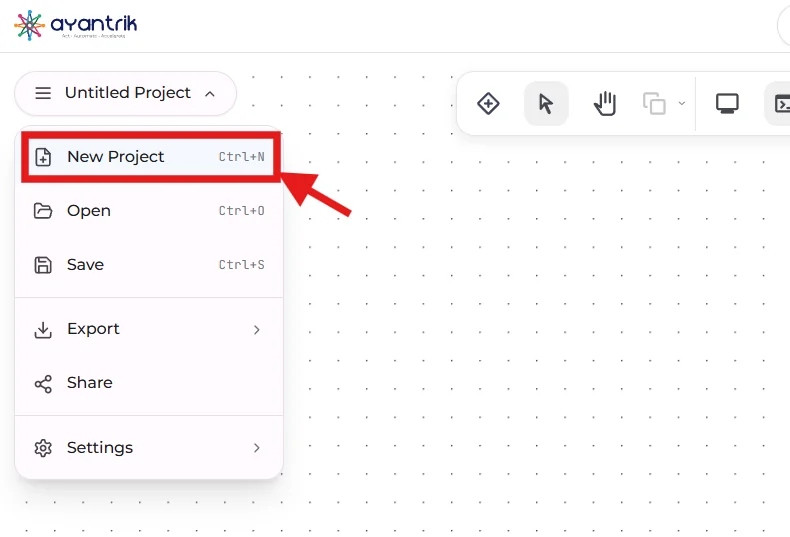 Create New Project
2. Add Components
Click Add Components from the toolbar.
 Toolbar
Search and drag the following components:
Toolbar
Search and drag the following components:
- Arduino Uno
- 2 Slide Switches
- AND Gate
- LED
Arrange them properly on the canvas.
3. Make the Circuit Connections
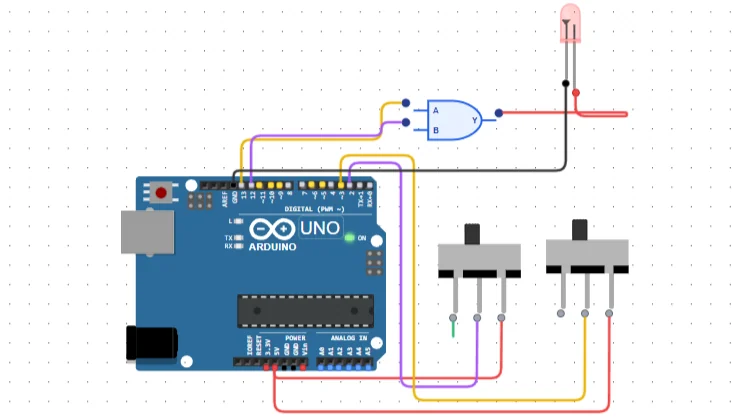 And Gate Connection
Slide Switch Connections
Switch 1:
Right→5VCOM→D2
Switch 2:
Right→5VCOM→D3
These switches act as digital inputs.
Arduino to AND Gate
D13→ AND Gate Input AD12→ AND Gate Input B
Arduino sends HIGH / LOW signals based on switch state.
AND Gate to LED
- AND Gate Output (Y) → LED Anode
- LED Cathode →
GND
LED shows the output of the AND gate.
Code
Upload the following Arduino code.
cppconst int swt1 = 2; const int swt2 = 3; const int input1 = 12; const int input2 = 13; int swt1State = 0; int swt2State = 0; void setup() { pinMode(input1, OUTPUT); pinMode(input2, OUTPUT); pinMode(swt1, INPUT); pinMode(swt2, INPUT); } void loop() { swt1State = digitalRead(swt1); swt2State = digitalRead(swt2); if (swt1State == HIGH) { digitalWrite(input1, HIGH); } else { digitalWrite(input1, LOW); } if (swt2State == HIGH) { digitalWrite(input2, HIGH); } else { digitalWrite(input2, LOW); } }
After writing the code, click Run from the toolbar to start the simulation.
Expected Behavior
Try different switch positions.
| Switch 1 | Switch 2 | LED |
|---|---|---|
| OFF | OFF | OFF |
| ON | OFF | OFF |
| OFF | ON | OFF |
| ON | ON | ON |
This confirms the correct working of the AND logic gate.
Built-in Debugging in Ayantrik Lab
Ayantrik Lab provides a built-in debugging system that helps you detect problems in both the circuit and the code.
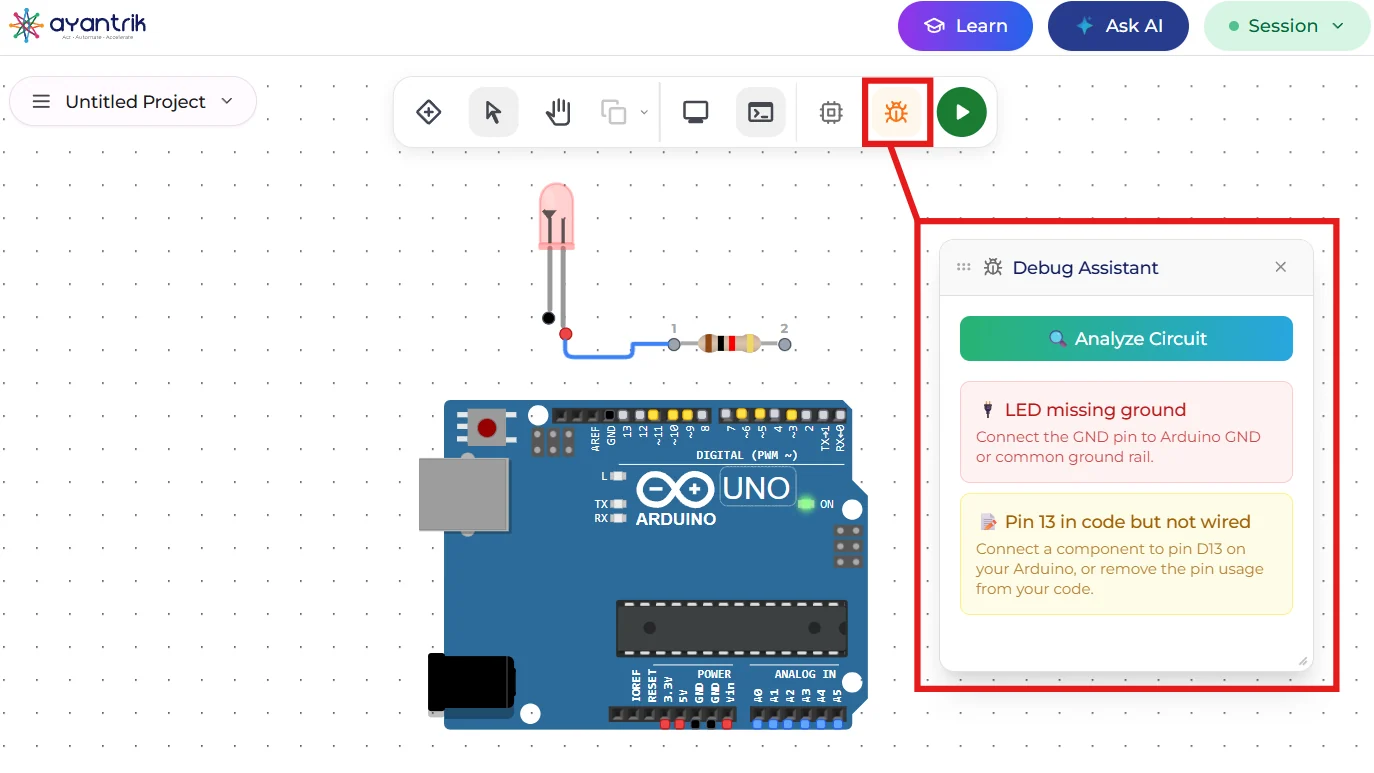 Built-in debugging tool
The debugger can find issues such as:
- Wrong connections
- Missing power or ground
- Incorrect pin mapping
- Code errors
This makes learning digital electronics easier, especially for beginners.
Conclusion
In this tutorial, we simulated an AND Gate using Arduino in Ayantrik Lab.
You learned:
- Basic digital logic theory
- Truth table of AND gate
- Using switches as inputs
- Controlling outputs using Arduino
- How logic gates work in real circuits
Logic gates are the foundation of all digital systems, and understanding them is essential before moving to advanced topics like:
- Flip-flops
- Counters
- Registers
- Microprocessors
Try building more logic circuits like:
Happy learning with Ayantrik Lab!